

How to Install IPTV on Android TV — Complete Setup Guide
Android TV is one of the best platforms for IPTV — it runs on Nvidia Shield, Chromecast with Google TV, Sony Bravia, TCL, Hisense, Philips, and dozens of other smart TVs and streaming devices. With native access to the Google Play Store, installing an IPTV player takes under 2 minutes. Here’s how to set up StreamFlex IPTV on any Android TV device.
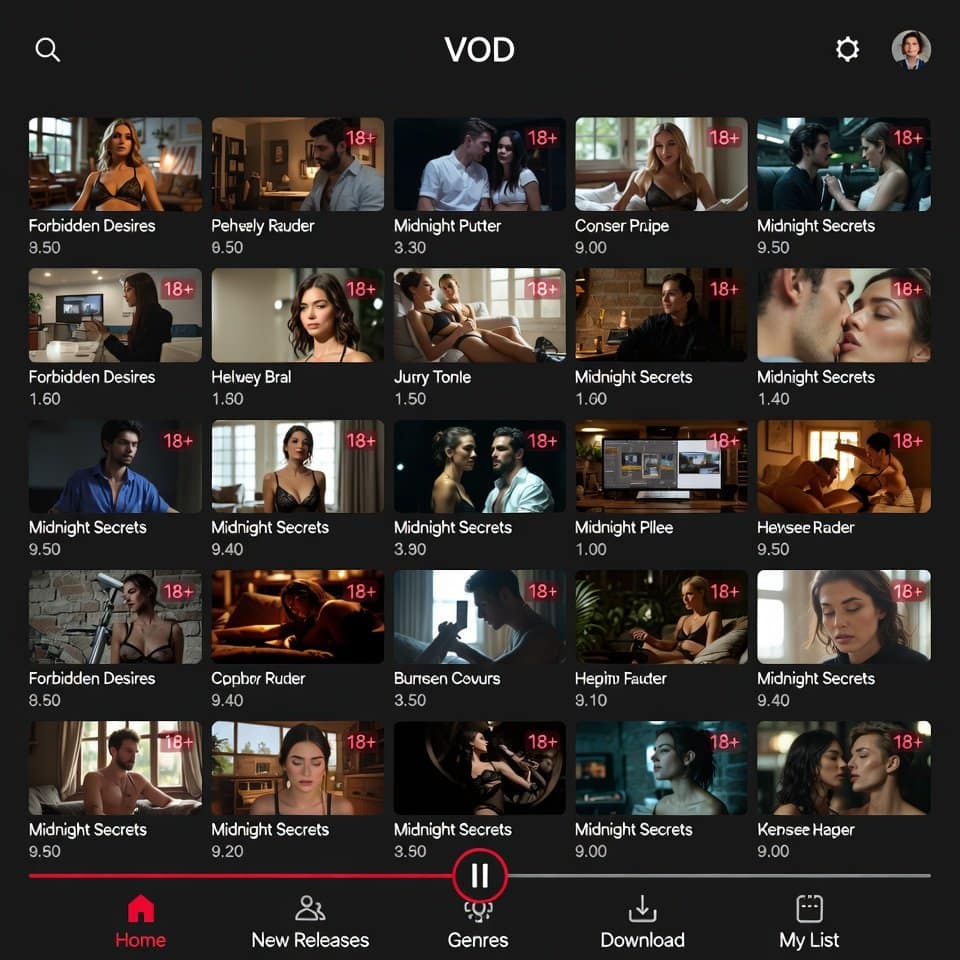
Method 1: IPTV Smarters Pro (Play Store)
- Open the Google Play Store on your Android TV
- Search for “IPTV Smarters Pro”
- Install the app (free)
- Launch and select “Xtream Codes API”
- Enter your StreamFlex credentials: Server URL, Username, Password
- Tap “Add User” — channels load automatically
- Browse Live TV, VOD Movies, or Series and start watching
Method 2: TiviMate (Best EPG Experience)
TiviMate is widely considered the best IPTV player for Android TV, offering a premium cable TV-like experience with an excellent electronic program guide.
📺 Ready to Start Streaming?
- Install TiviMate from the Google Play Store
- Open the app and select “Add Playlist”
- Choose Xtream Codes and enter your StreamFlex server URL, username, and password
- TiviMate downloads your channel list and EPG data
- Navigate using the full-screen EPG grid — browse by time, channel, or category
- Press OK on any program to start watching
TiviMate Premium ($5.49/year) unlocks multi-playlist support, recording, catch-up, and favorites — highly recommended for serious IPTV users.
Method 3: Downloader + Sideload (If App Not on Play Store)
Some Android TV devices have a limited Play Store. Use the Downloader app to sideload IPTV players:
- Go to Settings → Security → Unknown Sources → Enable for your browser/Downloader
- Install “Downloader” from the Play Store
- Open Downloader and enter the APK download URL for your preferred IPTV player
- Download and install the APK
- Launch the app and enter your StreamFlex credentials
Compatible Android TV Devices
- Nvidia Shield TV Pro — Best overall Android TV device, Tegra X1+ processor, Dolby Vision/Atmos, AI upscaling
- Nvidia Shield TV (Tube) — Compact version, same processor, great for IPTV
- Chromecast with Google TV (4K) — Budget-friendly ($50), native Android TV, Play Store access
- Chromecast with Google TV (HD) — Even cheaper ($30), HD only, still runs all IPTV apps
- Sony Bravia TVs — Built-in Android TV/Google TV on most 2020+ models
- TCL TVs — Many models run Android TV natively
- Hisense TVs — Select models with Android TV (not VIDAA)
- Philips TVs — Android TV on most Ambilight models
- Xiaomi Mi Box S — Budget Android TV box ($60), 4K HDR support
- Mecool KM2 Plus — Netflix-certified Android TV box
Android TV vs Android TV Box — What’s the Difference?
Android TV (Google TV) is Google’s official smart TV platform with a curated Play Store, voice remote support, and Google Assistant built in. Android TV boxes (covered in our Android Box guide) often run regular Android (not Android TV), which means a phone-like interface that’s less optimized for remote control navigation.
For the best IPTV experience, devices running official Android TV / Google TV are recommended — they have better app compatibility, smoother navigation, and official DRM support for premium content.
Optimize Android TV for IPTV
- Use Ethernet — Nvidia Shield and Chromecast 4K both support Ethernet adapters for the most stable connection
- Clear cache regularly — Settings → Apps → [IPTV App] → Clear Cache (weekly)
- Disable unused apps — Free up RAM by disabling pre-installed apps you don’t use
- Set video output to Auto — Let the device match the stream’s resolution automatically
- Enable hardware decoding — In your IPTV app settings, ensure hardware decoder is selected over software
Frequently Asked Questions
Which is the best Android TV device for IPTV?
The Nvidia Shield TV Pro is the gold standard — fastest processor, best 4K upscaling, Dolby Vision/Atmos, and gigabit Ethernet. For a budget option, the Chromecast with Google TV 4K ($50) offers excellent performance and runs all IPTV apps from the Play Store.
Can I use Google Assistant to control IPTV?
You can use Google Assistant to launch your IPTV app (“Hey Google, open IPTV Smarters”), but voice-controlled channel switching requires the app to support it. TiviMate has some voice search integration for finding channels by name.
Does Chromecast work with IPTV?
The Chromecast with Google TV (2020+) runs Android TV and installs IPTV apps directly from the Play Store — it works perfectly. The older Chromecast (casting-only models without Google TV) requires you to cast from a phone app, which is less reliable. See also: how to install IPTV on roku (2026). See also: how to install IPTV on apple TV 2026.
👉 Start your free StreamFlex trial — set up on your Android TV in under 3 minutes and test 18,000+ channels.
Related Guides
- IPTV on Android Box (Non-Android TV)
- IPTV on Firestick
- IPTV on Apple TV
- IPTV on Smart TV (Samsung, LG, Sony)
- IPTV on Windows PC
- IPTV Buying Guide
- View StreamFlex Plans
📚 Related guides: Install IPTV on Firestick · IPTV on Smart TV · IPTV on Android Box · IPTV on iPhone & iPad · Best IPTV for Football · Best IPTV USA · IPTV vs Cable TV
🚀 Get StreamFlex IPTV Today
20,000+ channels · 80,000+ movies · 4K quality · 24/7 support
💬 Order via WhatsApp 🎁 Free 24h Trial
✓ Instant activation · ✓ All devices · ✓ No contract · ✓ Money-back guarantee
3 thoughts on “How to Install IPTV on Android TV — Nvidia Shield, Chromecast & More (2026)”